I gave ChatGPT access to my mess of open Chrome tabs — and it turned my browser clutter into something genuinely useful
I usually use the ChatGPT website to engage with the AI chatbot, but I've recently been experimenting with the various browser extensions and other methods of talking to it.
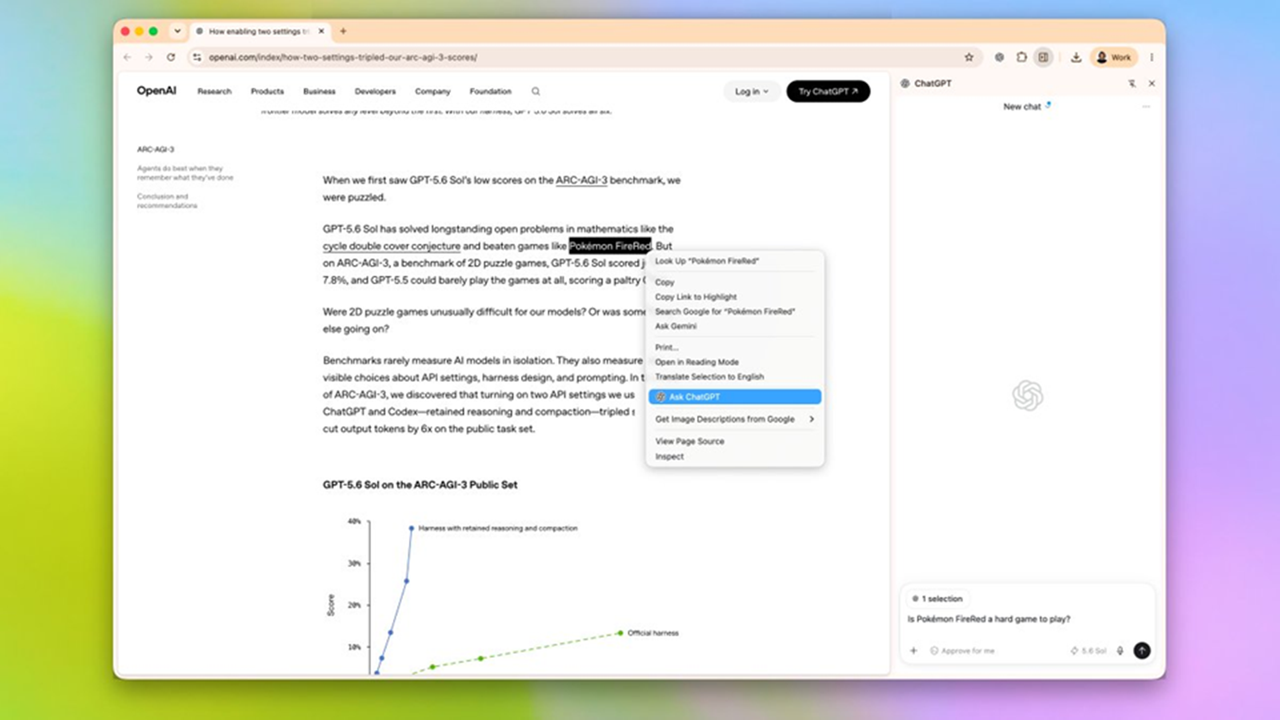
<![CDATA[ <article> <p>I usually use the ChatGPT website to engage with the AI chatbot, but I've recently been experimenting with the various <a href="https://www.techradar.com/computing/chrome/these-are-the-10-best-chrome-extensions-of-2025-according-to-google-and-theres-one-i-definitely-recommend">browser extensions</a> and other methods of talking to it. That includes the <a href="https://chromewebstore.google.com/detail/chatgpt/hehggadaopoacecdllhhajmbjkdcmajg" target="_blank">ChatGPT Chrome extension</a> that debuted in 2024. </p><p>Initially, it mostly seemed a way to let ChatGPT see what websites you were looking at, but the latest update is much more ambitious and intriguing. </p><p>The new features revolve around the "Side Chat" window, visible, as the name suggests, on the side of the page. I can open a Side Chat and ask questions about the website I'm looking at, rather than copying links or paragraphs into ChatGPT. </p><p>Now, OpenAI has enhanced the extension to do a lot more, including explaining highlighted text, summarizing <a href="https://www.techradar.com/computing/social-media/20-years-of-youtube-here-are-20-of-our-all-time-favorite-memes-and-moments">YouTube videos</a>, and comparing information across multiple open tabs.</p><div class="see-more see-more--clipped"><figure><blockquote class="twitter-tweet hawk-ignore" data-lang="en" cite="https://twitter.com/cantworkitout/status/2082970812584432115"><p lang="en" dir="ltr">Good news for anyone with too many tabs: ChatGPT is getting better around the web. 🧩 Chrome extension: In Side Chat, ask about a YouTube video, reference your open tabs, or highlight text on a page and ask away. 💻 Desktop app: Get URL suggestions as you type, revisit… pic.twitter.com/BIjS94jBQc<a href="https://twitter.com/cantworkitout/status/2082970812584432115">July 30, 2026</a></p></blockquote></figure><div class="see-more__filter"></div></div><p>That sounded much more interesting than another AI model benchmark, so I decided to ignore the obvious productivity demos and see how Side Chat handled the sort of browsing I actually do in my spare time. </p><p>I especially wanted to see how it did with tasks that normally involve lots of tabs and scrolling. I wanted to try the three features OpenAI had highlighted most heavily in its announcement: YouTube understanding, awareness of multiple open tabs and the ability to work directly with highlighted text. They sound fairly modest on paper, but each one removes a different piece of friction from everyday browsing.</p><h2 id="1-youtube-understanding">1. YouTube understanding</h2><p>I opened a long <a href="https://www.techradar.com/streaming/entertainment/spider-man-brand-new-day-screen-x-review">Spider-Man</a> YouTube video discussing the history of the character across comics, films and games, then opened Side Chat and asked it to: <em>"Summarize this video in six bullet points. Tell me the biggest differences it highlights between comic Spider-Man and the movie versions, and give me timestamps for the sections about the PlayStation games." </em></p><p>ChatGPT produced a structured overview that broke the video into its main topics and highlighted exactly where the sections I cared about appeared. It meant I could decide within a minute whether the entire half-hour video was worth watching or whether I only wanted to jump to a couple of specific segments.</p><h2 id="2-awareness-of-multiple-open-tabs">2. Awareness of multiple open tabs </h2><p>Next, I wanted to see how well the ChatGPT extension could juggle multiple tabs at once. I opened a weather forecast, a local museum, a nearby pizza restaurant, and a hiking trail guide. Then I asked the AI to: <em>"Look at all of my open tabs and plan the best Saturday afternoon. Explain your reasoning." </em></p><p>ChatGPT tied everything together beautifully into a single recommendation. </p><p><em>"Based on the tabs you have open, I'd recommend starting with the hiking trail. The weather forecast shows the best conditions before early afternoon, so you'll be more comfortable outdoors if you go first. After the hike, the nearby pizza restaurant is a convenient lunch stop, and the museum works well as an afternoon activity because it remains open later in the day and provides a good indoor option if the forecasted showers arrive. This order minimizes driving, avoids the hottest part of the day on the trail and gives you a relaxed finish to the afternoon."</em></p><p>That ability to connect information across unrelated tabs felt much closer to having an assistant than simply summarizing webpages.</p><h2 id="3-working-with-highlighted-text">3. Working with highlighted text</h2><p>The highlighted text feature seems simple, but I'll probably use it the most often. While reading a long article about astronomy, I highlighted three particularly dense paragraphs, right-clicked, and selected <strong>Ask ChatGPT</strong>, requesting that it <em>"Explain this highlighted section as though you're talking to someone who enjoys space but has never studied physics." </em></p><p>The Side Chat opened with the selected text already attached, and ChatGPT immediately focused on those paragraphs instead of asking me to paste them into a separate conversation.</p><p>ChatGPT in Chrome isn't quite my default way of using the AI yet, but I can't deny it's utility for providing context without extra effort on my part. It helped explain recipes, organize shopping across multiple tabs, and and help me find timestamps for particular bits of multi hour YouTube videos. It simply became part of browsing.</p> </article> ]]>
Read the full article on TechRadar
Read Full Article →